> ## Documentation Index
> Fetch the complete documentation index at: https://kumo.ai/docs/llms.txt
> Use this file to discover all available pages before exploring further.
# Google Cloud BigQuery
Kumo supports reading tables from **Google Cloud BigQuery** by connecting through a **Service Account Key**.
## Prerequisites
Before configuring the BigQuery connector, ensure you have:
* **Google Cloud Project Name**
* **Dataset Name** *(optional, if restricting access to a specific dataset)*
* **Service Account Key (JSON file)**
If you haven't created a Service Account and Key, follow these steps:
* [Create a Google Service Account](https://cloud.google.com/iam/docs/creating-managing-service-accounts#iam-service-accounts-create-console)
* [Create a Google Service Account Key](https://cloud.google.com/iam/docs/keys-create-delete#creating)
Save your **Project ID** and **JSON key file** securely—you will need them during setup.
## Required Permissions
To allow Kumo to access BigQuery, assign the following **roles** to your Service Account:
* `roles/bigquery.dataViewer`
* `roles/bigquery.filteredDataViewer`
* `roles/bigquery.metadataViewer`
* `roles/bigquery.readSessionUser`
* `roles/bigquery.user`
For **exporting results** back to BigQuery, grant:
* `roles/bigquery.dataEditor`
## Configuring Your BigQuery Connection
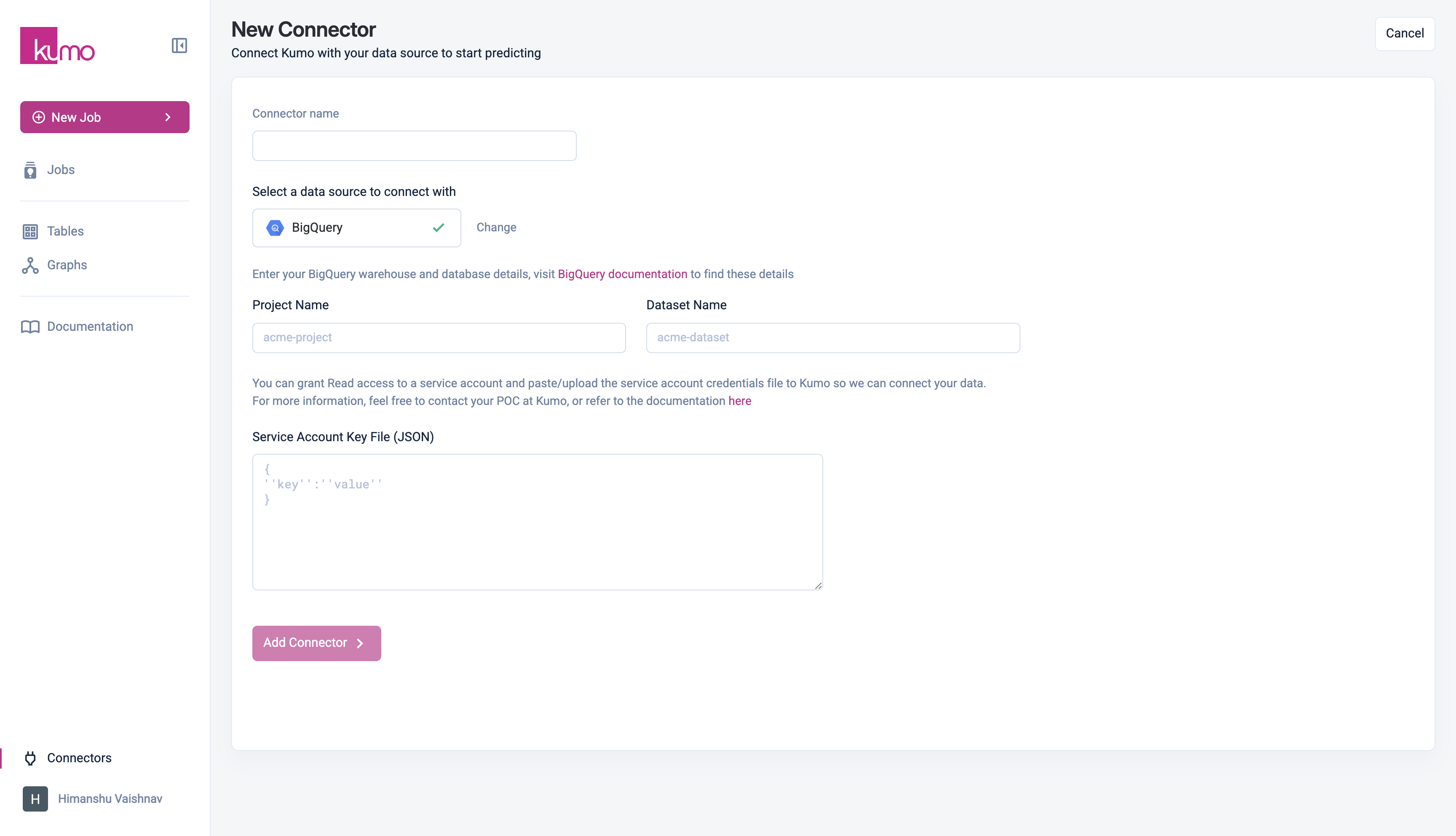
1. Navigate to **Connectors** in the side menu and click **Add Connector**.
2. Select **BigQuery** and enter the required details:
* **Project Name** – Grants access to all datasets in your project.
* **Dataset Name (optional)** – Restricts access to a specific dataset.
* **Service Account Key File (JSON)** – Upload your service account key file.
3. Click **Add Connector** to finalize the setup.
 ## **Verifying Your New BigQuery Connector**
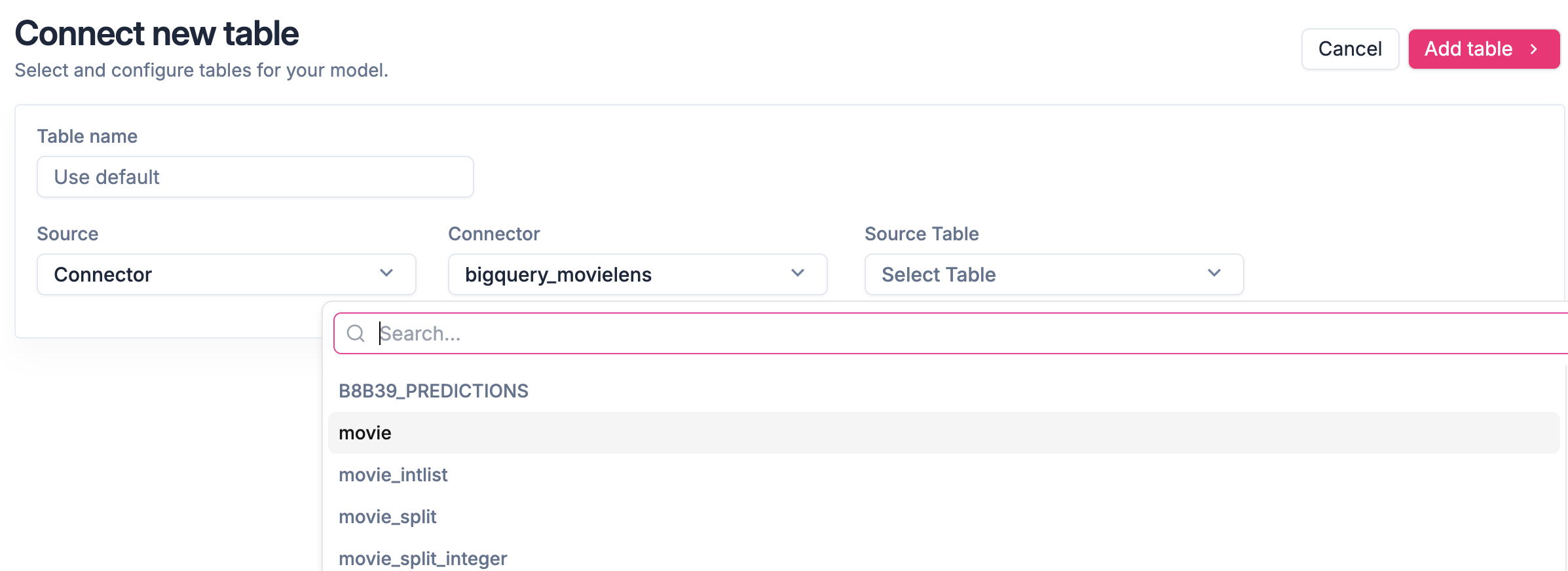
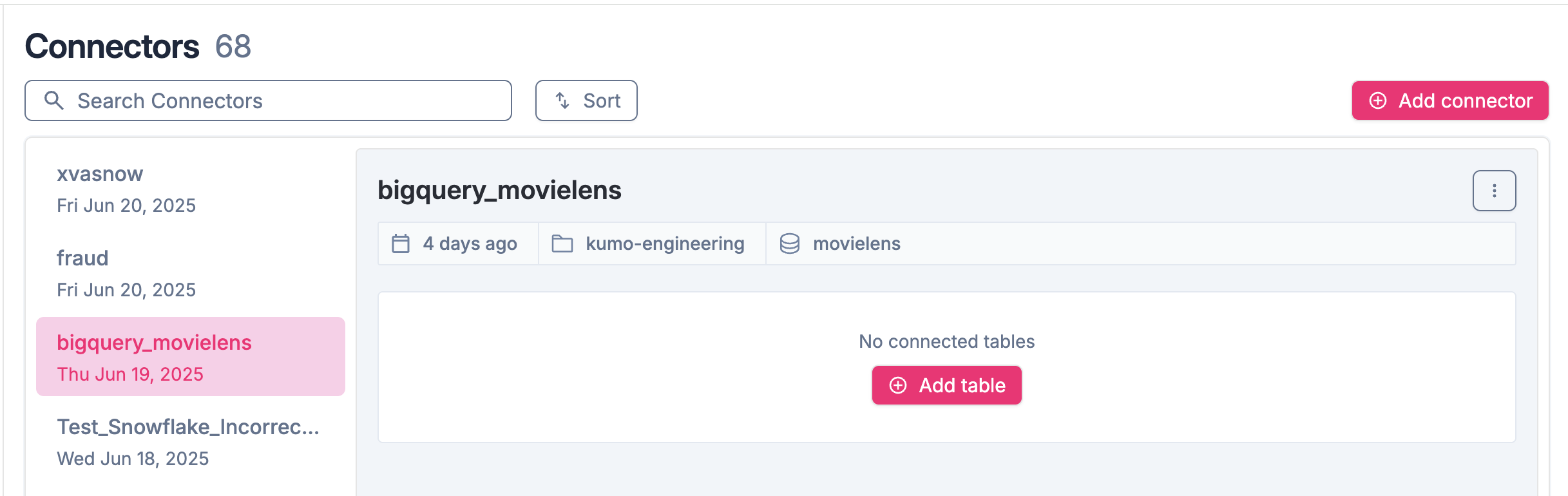
To verify that your new BigQuery connector is working, click on its name in the "Name" column of the "Connectors" page. Here we are showing a BigQuery connector named "bigquery\_movielens".
## **Verifying Your New BigQuery Connector**
To verify that your new BigQuery connector is working, click on its name in the "Name" column of the "Connectors" page. Here we are showing a BigQuery connector named "bigquery\_movielens".
 If you are able to see a list of source tables from the connector, then you are good to go!