> ## Documentation Index
> Fetch the complete documentation index at: https://kumo.ai/docs/llms.txt
> Use this file to discover all available pages before exploring further.
# Batch Predictions
## Overview
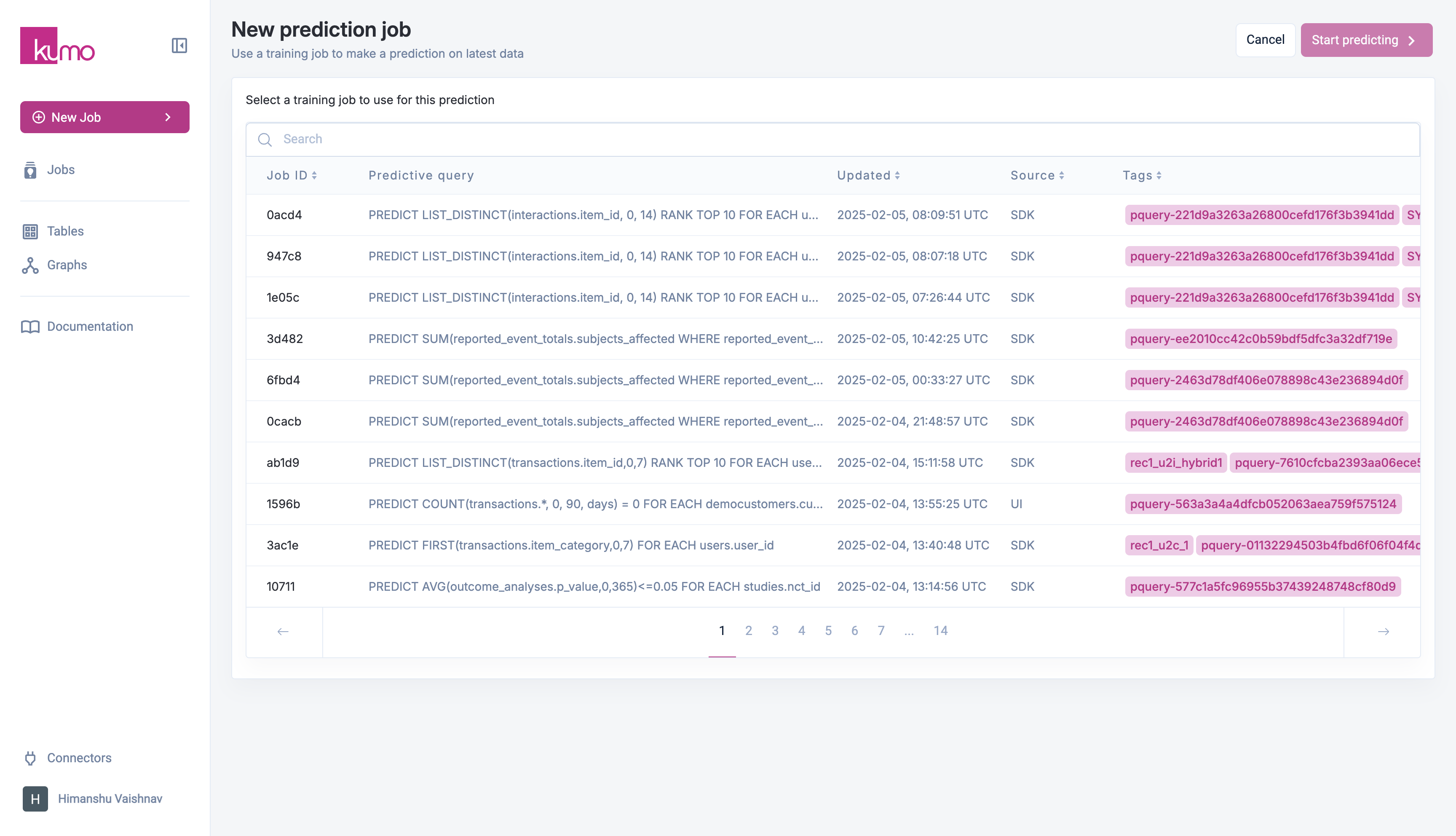
Once you are satisfied with the performance of your predictive query on historical data, you can generate batch predictions. This is done by navigating to **New > Prediction** and selecting a model to run.
## Creating a New Batch Prediction
To run batch predictions:
1. Navigate to **New > Prediction**.
2. Select a trained predictive model.
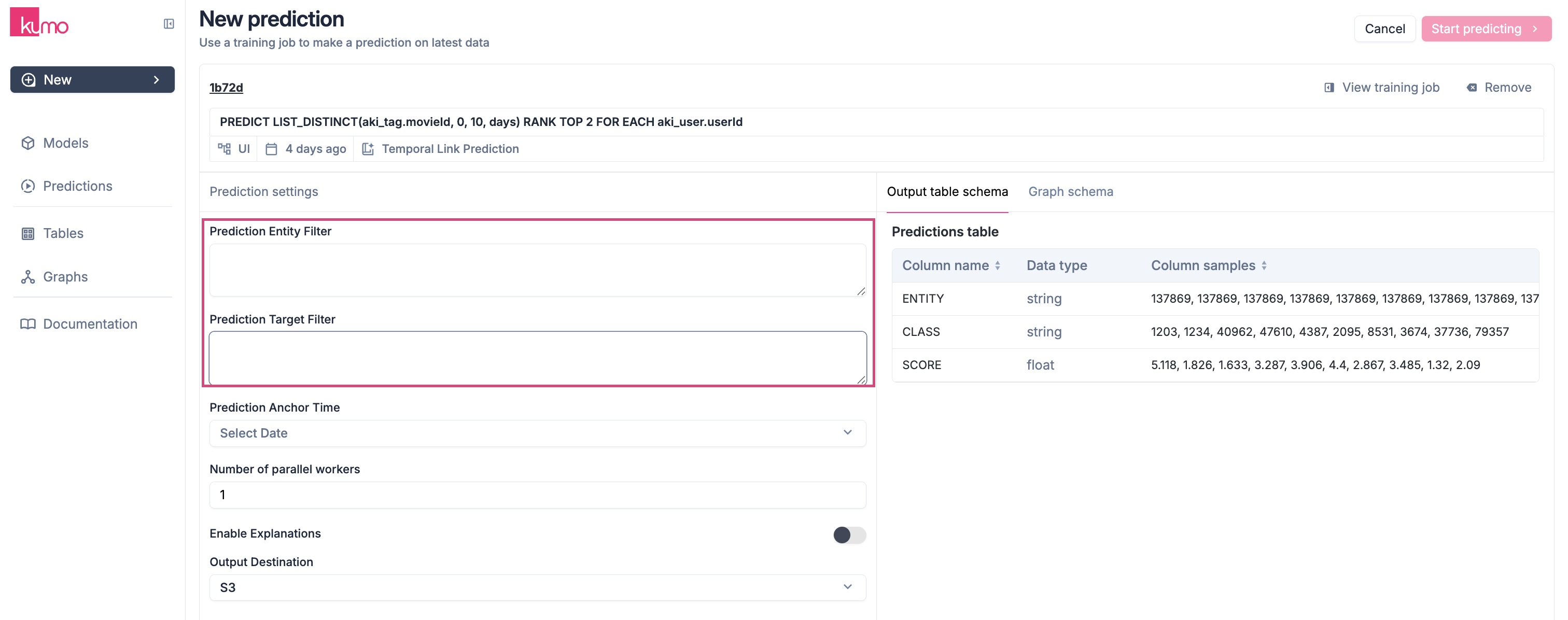
3. (Optional) Adjust predictive query filters to apply target entity filtering.
4. Configure batch prediction settings (anchor time, output destination, etc.).
5. Submit the batch prediction job.
 ## **Existing Batch Prediction Jobs**
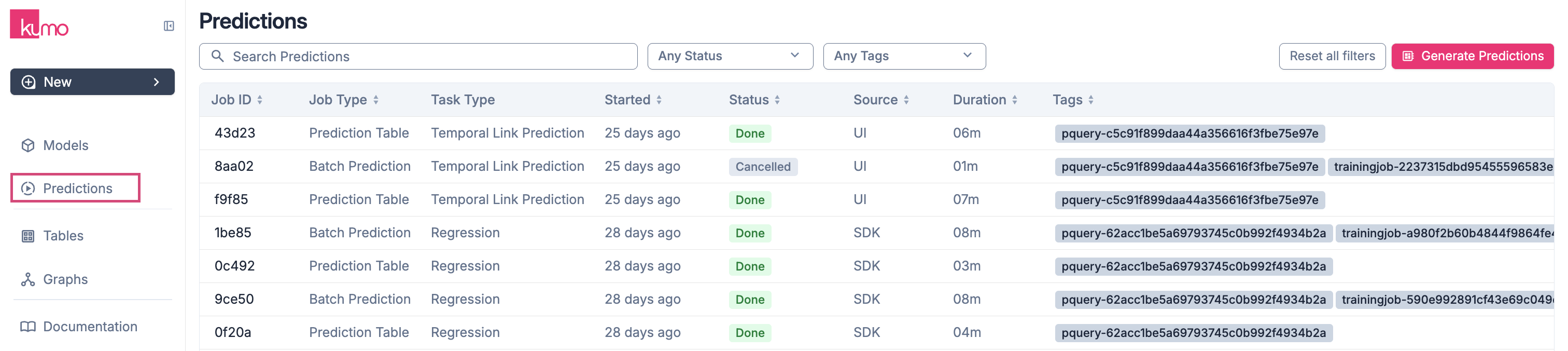
To view the details for an existing batch prediction jobs, click on the batch prediction job on "Predictions" page. You can view the details of each job by clicking on the job ID in the "Batch Prediction Job Id" column.
## **Existing Batch Prediction Jobs**
To view the details for an existing batch prediction jobs, click on the batch prediction job on "Predictions" page. You can view the details of each job by clicking on the job ID in the "Batch Prediction Job Id" column.
 ## Configuring Batch Prediction Settings
### Applying Filters at Prediction Time
After training, you may want predictions for a specific subset of entities. Kumo allows you to:
* **Filter target entities** by refining the dataset used for batch predictions.
## Configuring Batch Prediction Settings
### Applying Filters at Prediction Time
After training, you may want predictions for a specific subset of entities. Kumo allows you to:
* **Filter target entities** by refining the dataset used for batch predictions.
 Applying filters at batch prediction time helps:
* **Improve efficiency** by reducing the amount of data processed.
* **Streamline output** by limiting predictions to relevant business logic.
Example 1: Changing Entity Filters
```Text PQL theme={null}
WHERE customers.status = 'ACTIVE' AND COUNT(transactions.*, -90, 0) > 0
```
Example 2: Adjusting Target Conditions
```Text PQL theme={null}
PREDICT LIST_DISTINCT(transactions.article_id
WHERE articles.product_type_name = 'Trousers'
AND transactions.price >= 50,
0, 90, days)
FOR EACH customers.customer_id
```
```Text PQL theme={null}
WHERE articles.product_type_name = 'Trousers' AND articles.color = 'blue'
```
### Prediction Anchor time
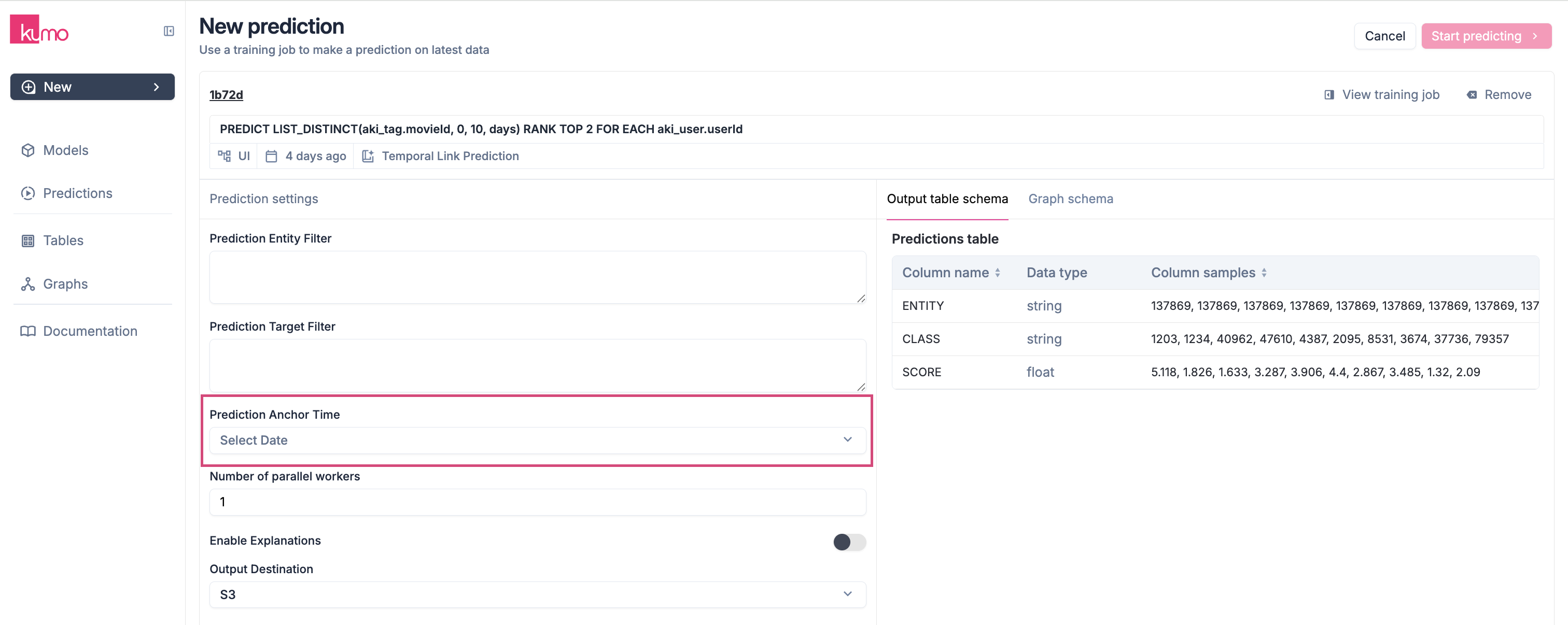
* Set an optional **prediction anchor time** in ISO 8601 format (e.g., `2024-02-27`). If left blank, Kumo defaults to the latest timestamp in the fact table.
Applying filters at batch prediction time helps:
* **Improve efficiency** by reducing the amount of data processed.
* **Streamline output** by limiting predictions to relevant business logic.
Example 1: Changing Entity Filters
```Text PQL theme={null}
WHERE customers.status = 'ACTIVE' AND COUNT(transactions.*, -90, 0) > 0
```
Example 2: Adjusting Target Conditions
```Text PQL theme={null}
PREDICT LIST_DISTINCT(transactions.article_id
WHERE articles.product_type_name = 'Trousers'
AND transactions.price >= 50,
0, 90, days)
FOR EACH customers.customer_id
```
```Text PQL theme={null}
WHERE articles.product_type_name = 'Trousers' AND articles.color = 'blue'
```
### Prediction Anchor time
* Set an optional **prediction anchor time** in ISO 8601 format (e.g., `2024-02-27`). If left blank, Kumo defaults to the latest timestamp in the fact table.
 ### **Setting Per Prediction Type**
You'll also need to specify some additional settings per your prediction type. For example, a binary classification task will require setting a threshold (e.g., 0.5) for determining the point at which an object is considered part of the target class.
### **Setting Per Prediction Type**
You'll also need to specify some additional settings per your prediction type. For example, a binary classification task will require setting a threshold (e.g., 0.5) for determining the point at which an object is considered part of the target class.
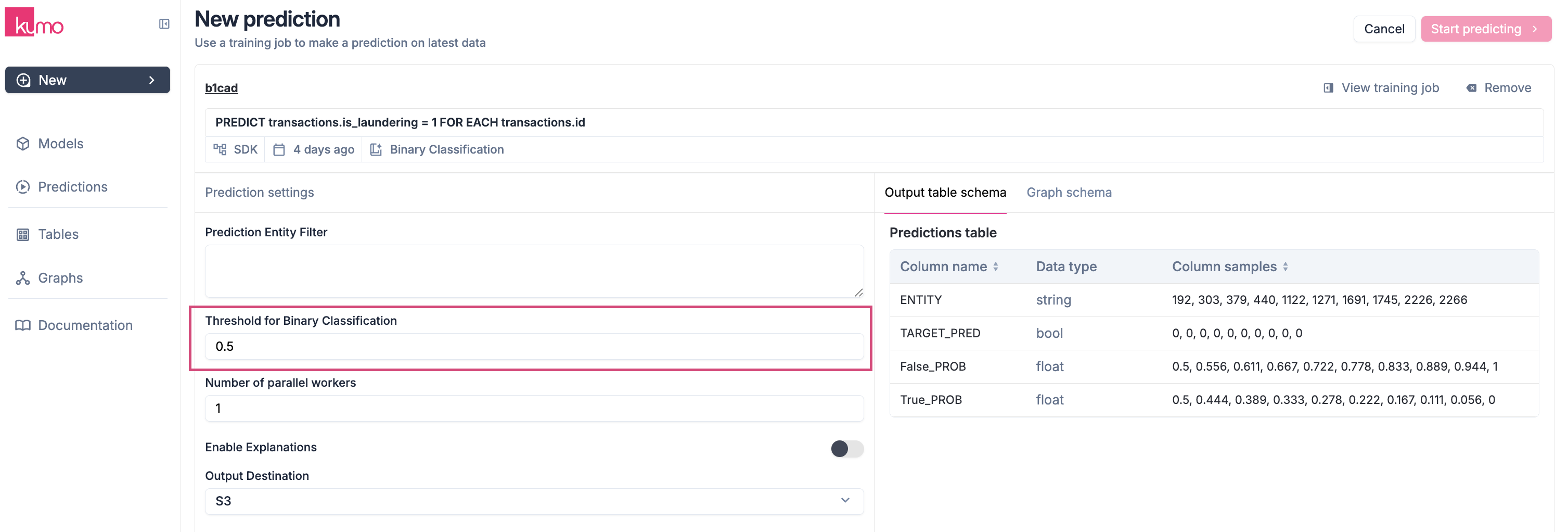 > **Your editable options (e.g., Threshold for Binary Classification) will depend on the type of prediction task at hand.**
### \\
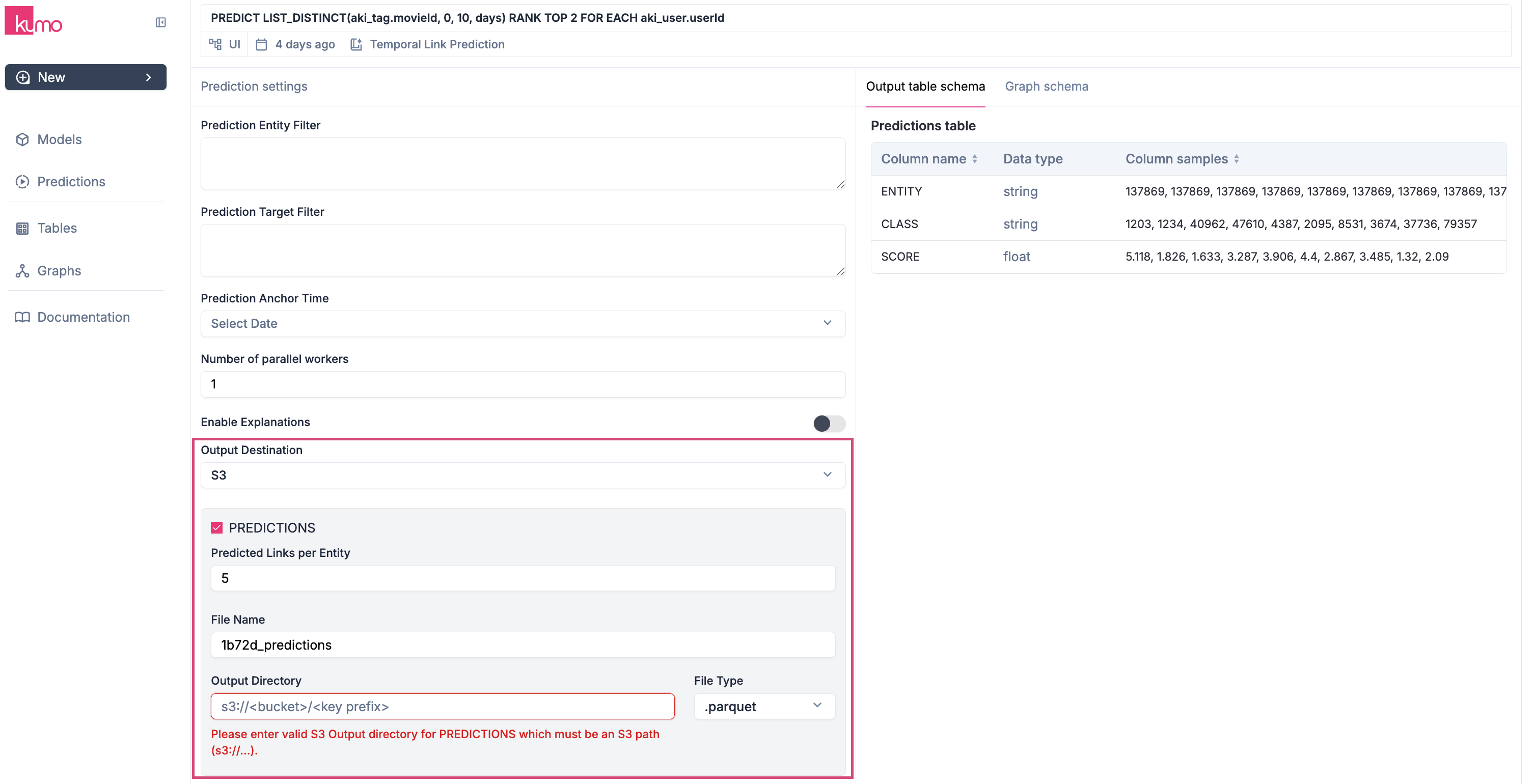
Output Destination
Specify where predictions should be stored. Available destinations:
* **AWS S3** (CSV, Parquet, or partitioned Parquet format)
* **Snowflake** (overwrites existing table rows)
> **Note: The user account that you used to create the Snowflake connector must have permissions to create tables in Snowflake.**
* **BigQuery** (appends predictions to an existing table)
> **Note: The user account that you used to create the BigQuery connector must have permissions to create tables in your BigQuery data warehouse.**
* **Local Download** (sample output up to 1GB)
> **Your editable options (e.g., Threshold for Binary Classification) will depend on the type of prediction task at hand.**
### \\
Output Destination
Specify where predictions should be stored. Available destinations:
* **AWS S3** (CSV, Parquet, or partitioned Parquet format)
* **Snowflake** (overwrites existing table rows)
> **Note: The user account that you used to create the Snowflake connector must have permissions to create tables in Snowflake.**
* **BigQuery** (appends predictions to an existing table)
> **Note: The user account that you used to create the BigQuery connector must have permissions to create tables in your BigQuery data warehouse.**
* **Local Download** (sample output up to 1GB)
 ### Parallel Processing
Specify the **number of parallel workers** (up to 4) to speed up batch predictions for large datasets.
### Output Type
Choose the type of output:
1. **Predictions** - The predicted target values for the selected entities.
2. **Embeddings** - Numerical vectors of entities capturing their behavioral patterns.
### Parallel Processing
Specify the **number of parallel workers** (up to 4) to speed up batch predictions for large datasets.
### Output Type
Choose the type of output:
1. **Predictions** - The predicted target values for the selected entities.
2. **Embeddings** - Numerical vectors of entities capturing their behavioral patterns.
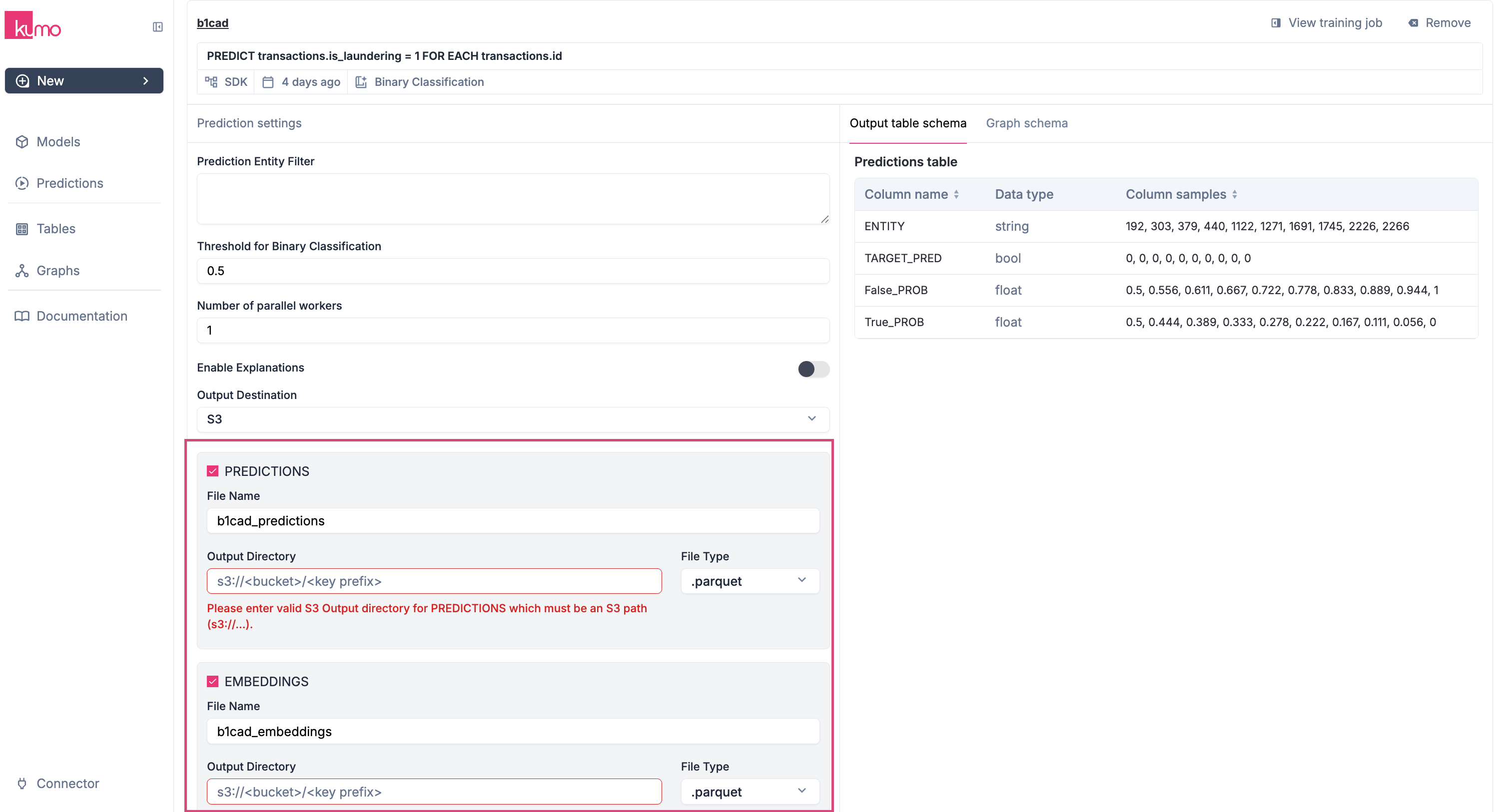 You'll need to either specify an output directory (for S3) or a table name (for Snowflake/BigQuery), depending on your output destination.
If you select "Local Download Only," you will be able to download a sample of the outputs (up to 1GB). Also, you'll need to specify a file type for your prediction outputs— either Parquet or CSV file format.
The resulting table will contain a column for the entity id, columns for predicted values or embeddings, and a timestamp column if relevant.
> **You can later download a sample batch prediction output—even if you choose to write predictions to another data source.**
>
> **You can choose to output both predictions and embeddings.**
## Running and Monitoring Batch Predictions
Once configured, click **Start Predicting** to launch the batch prediction job.
You will be redirected to the batch prediction job details page, where you can monitor progress and download output samples.
## Batch Prediction Outputs
Check [Batch Prediction Outputs](/batch-prediction-outputs) for details on the batch prediction outputs.
If you need to run inference on a different graph than the one used during training, see [How do I generate predictions with a different graph than my training graph?](/troubleshooting/how-do-i-make-inference-on-a-different-graph).
You'll need to either specify an output directory (for S3) or a table name (for Snowflake/BigQuery), depending on your output destination.
If you select "Local Download Only," you will be able to download a sample of the outputs (up to 1GB). Also, you'll need to specify a file type for your prediction outputs— either Parquet or CSV file format.
The resulting table will contain a column for the entity id, columns for predicted values or embeddings, and a timestamp column if relevant.
> **You can later download a sample batch prediction output—even if you choose to write predictions to another data source.**
>
> **You can choose to output both predictions and embeddings.**
## Running and Monitoring Batch Predictions
Once configured, click **Start Predicting** to launch the batch prediction job.
You will be redirected to the batch prediction job details page, where you can monitor progress and download output samples.
## Batch Prediction Outputs
Check [Batch Prediction Outputs](/batch-prediction-outputs) for details on the batch prediction outputs.
If you need to run inference on a different graph than the one used during training, see [How do I generate predictions with a different graph than my training graph?](/troubleshooting/how-do-i-make-inference-on-a-different-graph).